|
Version 4.46 NetModem User's Guide Table of Contents Switch to PDF Guide
NetModem is a client-server based software solution for Windows which allows users to access shared modems (and other serial devices) located on another PC over a TCP/IP network. By creating one or more virtual COM ports on each client PC which redirect to the shared COM ports on the Modem Server PC, your client applications can access these devices simply by pointing them to a virtual COM port. Modem Pooling is a feature which allows each client to automatically
connect to the next available modem or device in a pool of defined COM
ports, rather then each client connecting to a specific device. When
all the modems or devices in the pool are in use, the client PC is optionally
informed. Multiple modem pools can be defined on the NetModem Server,
each pool can contain one or several COM ports.
This Quick Guide is intended for users familiar with installing Windows
based software. The information below will enable you to get your NetModem
Server and Clients up and running, as quickly as possible. Requirements: Operating System Software (for both Server and
Client PC's):
The NetModem Server PC also requires at least one serial communications
port, which could be a physical connector that attaches to an external
serial device such as an analog modem, or it could be an internal modem,
T1/E1 Serial ISDN RAS card, or other device which create Windows COM
port(s).
Client Software Installation and Configuration Overview:
The NetModem Server software should be installed on a PC where the
modems (or other serial devices) are physically located. NetModem Server
can run under any version of Windows 10, 8.x, 7, Vista, XP, and Windows
Server 2000 through 2016. The PC can be running any Intel Pentium compatible
processor, and should have at least the minimum amount of RAM suggested
by Microsoft to run. Before installing NetModem Server:
Once the installation is finished, enter the End-User Information (your name and organization), and optionally enter a License Key. Leave the license key blank to evaluate the software for 30 days. The NetModem Server installer automatically adds an exception in Windows Firewall to allow incoming access on TCP port 6000. If using a different firewall or different TCP port, configure the firewall accordingly. When performing an upgrade from a previous version, the installer will automaticly uninstall the previous version while leaving the configuration settings intact. Upgrading NetModem Server should be done at a time that no clients are currently connected to avoid a disruption in service during the install.
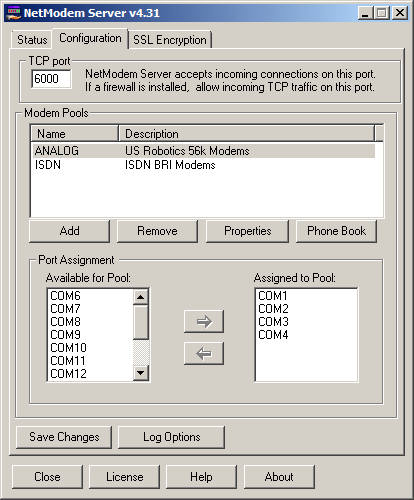
NetModem Server is configured from the Configuration tab of
the NetModem Server manager. This can be opened from the Start >
All Programs > NetModem Server menu, or by by right-clicking
on the NetModem Server system tray icon and selecting Configure.
The Tray icon is usually located in the lower right corner of the screen
near the clock. In Windows 7 and later the tray icon is hidden by default,
and can be found by clicking the ^ symbol in the taskbar, to show hidden
icons. If the NetModem Server manager is already open, click the Configuration
tab at the top.
Afer making changes to the configuration options, click the Save
Changes button. When changing the TCP/IP Port number:
When configuring NetModem Server for the first time, add at least one COM port from the "Available for Pools" list on the left to the "Assigned to Pool" list on the right. The Pool Properties window allows you to define the name of
the Pool, an optional pool description, user credentials (to require
an authenticated username/password or a pool password), and several
other configuration options and rules as shown below. The Support RAS Sharing option allows the NetModem Server to share the COM ports with the Windows "Routing and Remote Access Service". Turning off this option will allow prevent NetModem Server from assigning a COM port to a client which is already held open by the Routing and Remote Access Service. For more information, See Using NetModem with RAS.
Once the pool properties have been updated as needed, click OK to close the properties window, and click Save Changes. The next step is to install the NetModem Client software on each PC which needs to access the shared modems, and verify the connection using the NetModem Client Configuration "Test Server connection" button.
Before installing the NetModem Client Software:
Run the NetModem Client installer to begin the Installation Wizard. It will take you though the following steps:
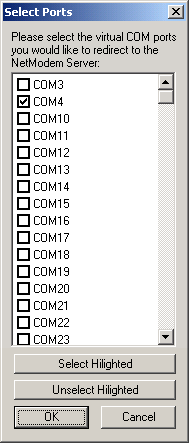
The NetModem Client never requires a license key, and it is fully functional but limited to operating with the NetModem Server software. The installation should only take a moment to finish. Once the installation completes, the "Select Ports" window shown below will automaticly open if this is a first time installation. For information on performing unattended installations with pre-configured virtual COM port(s), refer to the NetModem Support guide here: https://pcmicro.com/netmodem/support_install.html
6. Configuring the NetModem Client Software The NetModem Client can create one or more virtual COM ports, which are each redirected to a pool of shared COM ports on a NetModem Server PC over the network. The first step is to select the virtual COM ports.
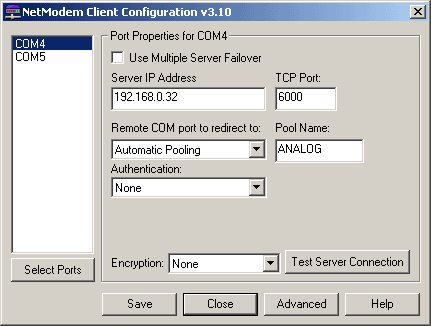
Once virtual COM port(s) are selected clicked OK, and the NetModem Client Configuration Window will appear. The NetModem Client Configuration window allows defining the Server IP address and TCP Port for each virtual COM port, and optionally which remote COM port it and Modem Pool should redirected to.
If the Pool Name is left blank, the first pool defined on the server will be used. The "Use Multiple Server Failover" checkbox allows
a list of Failover servers to be configured. NetModem Client can automatically
go to other servers if the primary server is either full or unreachable. The Authentication options are: The Encryption options are: The command buttons on the NetModem Client Configuration window are
as follows:
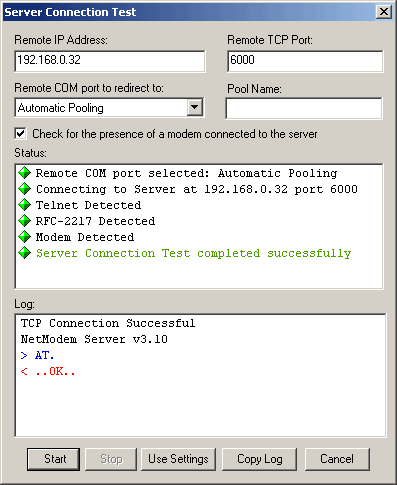
Once the Server IP Address, TCP Port, and optional settings have been defined for each of the virtual COM ports, verify that each virtual COM port can communicate with the NetModem Server by selecting the COM port, and then clicking the Test Server Connection Button.
When the test stops, you may click on "Start" to test the port again, or click "Use Settings" to accept any changes that were made to your settings. The "Copy Log" button allows you to copy the test results to the clipboard, allowing it to be pasted into a document or email. The "Cancel" button exits the test without saving. If your virtual COM ports tested with similar results as shown above, then you have successfully configured the NetModem Client. Click "Use Settings" to close the test window. If the result says "Connection Failed" then either
the IP Address is is unreachable, or the NetModem Server is not accepting
connections on the defined TCP port for some reason. See the
Troubleshooting Chapter. Once you have successfully configured the virtual COM port(s), click Save or Close and you will be provided with a reminder to install modem drivers which will guide you through the process outlined below.
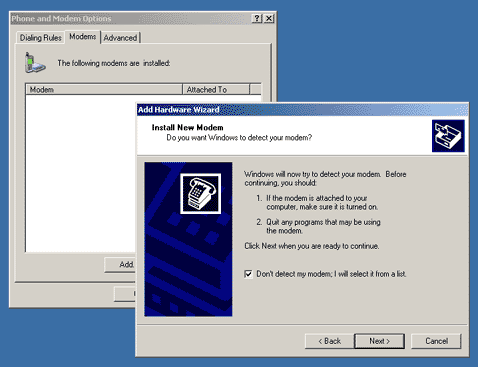
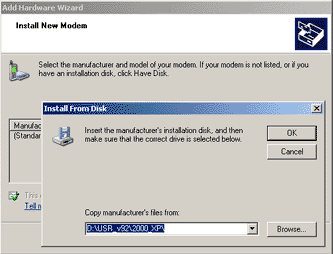
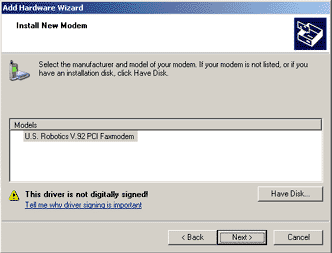
If the devices you are connecting to the shared ports are not Modems, you can skip this section. Most Windows DialOut Applications require a modem driver to be present in order to dial out, but some applications do not require a modem driver as they communicate directly with the Windows COM port. We suggest installing a modem driver for compatibility with the widest range of applications. PLEASE NOTE: Some modem drivers can be installed using their own setup program, but if the setup program is looking for the modem to be physically present on the computer it may not complete, so we suggest manually installing the modem driver using the Modem Driver .INF file as shown below. To open the "Phone and Modem" applet manually, Go
to the Windows Control Panel and locate the "Phone and
Modem" icon. In older versions of Windows Control Panel you
may need to switch from "Catagory View" to "Classic
View" or "Large Icons" to find it. Double
click on the "Phone and Modem" icon to enter the "Phone
and Modem Options" Window. Then click on the "Modems"
tab at the top, and it will show you which modems are currently installed.
Click the "Add" button at the bottom to add a modem
driver. From the Add Hardware Wizard, enable the checkbox: "Don't
detect my modems" and click "Next".
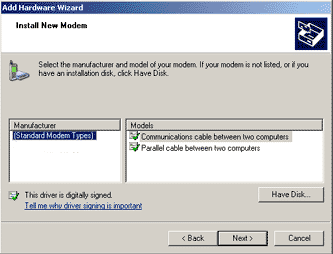
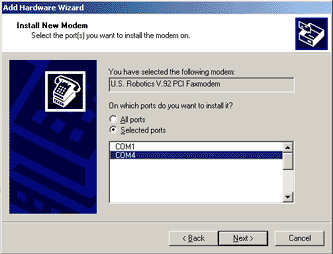
A list of available COM ports should appear. Click the "Selected ports" option, and click the virtual COM port which you selected in the NetModem Client Configuration window (In this case it is COM4). Click "Next". If no Virtual COM ports appear in the white box, then either the NetModem Client was unable to establish a connection with a modem on the server, or the modem driver is not designed to detect a virtual COM port. To narrow down the cause, run the NetModem Client Configuration's "Test Server Connection" to see if it successfully detects a modem on the server. If this succeeds then the cause is a modem driver issue.
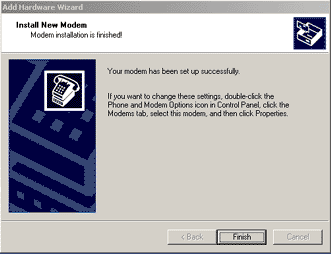
The modem driver should now be installed. Click "Finish" to close the Add Hardware Wizard.
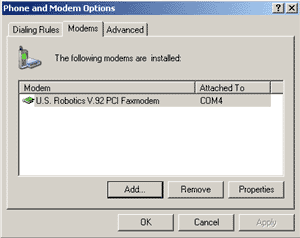
From the Phone and Modem's "Modem" tab, verify that the installed
modems list shows that the new modem is "Attached To"
the Client Virtual COM port. If your modem driver can not be installed on the virtual COM port for any reason, contact a technical support engineer for assistance.
|

|
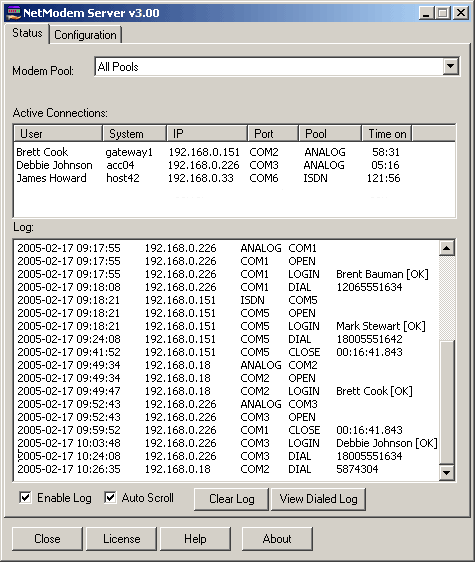
By default all pools will be displayed in the Status screen,
but you can view just a particular pool by selecting it from the
pulldown list. The activity log shows client logins, COM ports being opened
and closed, phone numbers that are dialed, etc. separate logs
for each pool plus a master log are all written to log files in
the folder where NetModem Server is installed. |
 |
Tip: The Status tab
window can be widened as needed to view additional notes in the Log
entries, and the new width will be used each time it's opened in the
future.
If more then one pool is defined, a separate log is maintained
for each modem pool, as well as a master log for all pools. The logs
are located in the folder that the NetModem Server was installed in,
usually in c:\program files\NetModem\Server\
The filename of the master log is allpools.log, and the filename of each pool is {poolname}.log,
The "Clear Log" button allows clearing just the current
log being viewed, or all the logs. It also asks if the log files should
be also be deleted.
The "View Dialed Log" Displays a list of all phone
numbers that have been dialed, in addition to any phone numbers which
were blocked by NetModem Server due to dialin block filter defined in
the pool properties.
Each entry contains the following data:
- Time/Date of Call
- Duration of call
- Phone Number
- User Name
- System Name
- IP Address
- COM Port
- Pool Name
- Bytes Sent
- Bytes Received
Logging can also be directed to any ODBC compatible database. See the
Logging Options chapter for details.
The "Close" "License" "Help"
and "About" buttons are described in the
Configuring NetModem Server chapter.
8.2 Monitoring Activity on the Clients:
Client users can display the NetModem Client Monitor Status screen by
right clicking the NetModem Client system tray icon  and selecting Status. This can also be accessed from the Start >
All Programs > NetModem Client > Monitor NetModem Client menu.
and selecting Status. This can also be accessed from the Start >
All Programs > NetModem Client > Monitor NetModem Client menu.
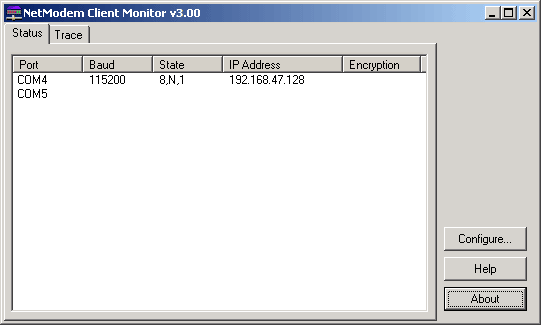
Each Virtual COM port created by NetModem Client is Listed under "Ports"
in the Status screen.
When a COM port is open, its Baud, State, and IP Address
fields will appear.
After a COM port is closed, these fields are removed a few seconds later.
Baud: The number of times per second that an RS-232 serial signal
can change on this port.
Common
values are 300, 1200, 2400, 9600, 19200,38400 ,56700 and 115200.
State: The number of Data Bits, the Parity Type, and the number
of Stop Bits the port is configured for.
(I.E.:
the above "8,N,1" means 8 Data Bits, No
Parity, and 1 Stop Bit.)
IP Address: The IP Address (or Hostname) of the NetModem Server
PC which this COM port is redirecting to.
Encryption: The Encryption Cipher being used, if any.
The following buttons are usually available are on the right:
Configure: Opens the NetModem Client Configuration Window. (This button may be removed by the Administrator to prevent users from making changes to the configuration).
Help: Opens the Users Guide.
About: Displays the version, copyright and contact information.
Client users can monitor the Data Flow occurring on all of the Virtual COM ports by selecting the Trace tab in the NetModem Client Monitor.
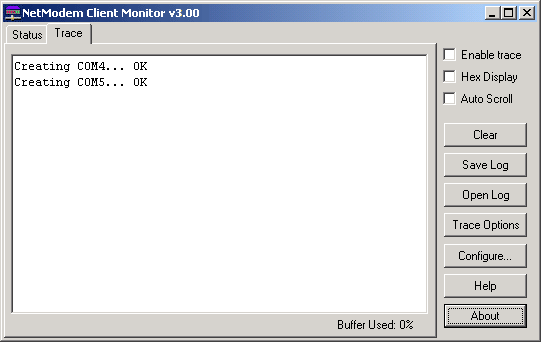
The trace Window normally only displays messages when virtual COM ports are created or removed, or the virtual serial port driver is restarted.
When the Enable Trace checkbox is selected, this tab will display
the serial data moving to and from the client and server along with
the timestamp and name of the COM port. You can optionally select the
Hex Display checkbox to show the data in hexadecimal numeric
format instead of the default ASCII code format, and you can select
the Auto Scroll checkbox to have the window scroll as more data
is logged.
Enabling the Trace can be a valuable tool for troubleshooting misconfigured
application software.
Trace should normally be left disabled, as enabling it will cause a
slight decrease in the performance and will increase the amount of RAM
used.
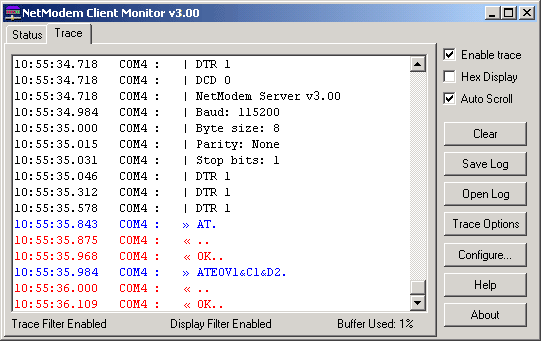
There are three color codes used in the trace data:
- Control Information
Black text preceded with a "|" is Control Information, such as a changing Status Line, Baud Rate, or State setting, or when a COM port is opened or closed.
-
Transmit Data
Blue text preceded with a "»"is data transmitted over the COM port by the application software. This can be viewed in either ASCII code format, or Hexadecimal numeric format.
-
Receive Data
Red text preceded with a "«" is data received over the COM port by the application software. This can be viewed in either ASCII code format, or Hexadecimal numeric format.
There are four buttons used to control the trace log:
Clear: Erases the entire log from the window.
Save Log: Saves the log file in either ASCII format (.log) or
binary format (.trc)
Open Log: Opens a binary format (.trc) trace file that was previously
saved.
Trace Options: The following Trace Options are available:
|
Select Ports to Display: Allows limiting the number of
COM ports who's data is displayed in the trace window, to specific
ports that are being traced. For applications using a large number
of COM ports, this allows focusing on specific ports. |
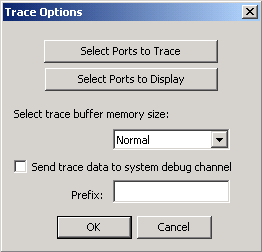 |
Send trace data to system debug channel: By enabling this option,
all trace data is also sent to the system debug channel. This data can
be collected using third party applications such as DebugView.
An optional prefix can be defined, which is added to the beginning of
each event line.
DebugView is an application which allows monitoring debug output
on a local PC, or any computer on the network that can be reached via
TCP/IP. DebugView is a free product from Microsoft Sysinterrnals, which
can be downloaded here:
http://technet.microsoft.com/en-us/sysinternals/bb896647.aspx
DebugView can be used to send the Trace Log data directly to a file
by using the File > Log to File command. Otherwise,
DebugView defaults to filling its buffer with the Trace data which can
be saved to a file manually by using the File >Save as
command.
DebugView can include the Timestamp of each event that is logged by
enabling the Options > Show Time option.

9. Server Logging Options
9.1 Server Logging Overview
NetModem Server allows logging of phone calls and other activity to be stored in ASCII text files, or an ODBC database. Both logging methods can also be enabled simultaneously, or logging can be disabled entirely.
ASCII text files are convenient for use with simple scripts, and can be viewed using Notepad or WordPad.
The following ASCII text file logs can be created:
|
ALLPOOLS.LOG |
A master activity log of all the pools. (Only used if more then 1 pool is defined). |
|
{POOLNAME}.LOG |
A separate activity log for each pool defined, where {POOLNAME} = name of pool. |
|
DIALED.LOG |
A log of all phone numbers dialed. |
ASCII text files are stored in the Log
Files Path defined under Log
Options in the Configuration
tab.
The default is c:\program files\netmodem\server\logs
ODBC Databases offer many advantages over ASCII text file logs. Any ODBC Database can be used, including:
- Microsoft Access
- Microsoft Excel
- Microsoft SQL
- MySQL
Third party applications such as Crystal
Reports and custom scripts
written for MS-SQL or MySQL
can create complex reports by accessing the database data in real-time.
The same database table names can be created as the ASCII text files
above, but without the .log extension. The database filename and location
is defined by the ODBC database driver.
When either ASCII text files
or ODBC database logging is
enabled, NetModem Server can display up to the last 500 lines of the
activity logs in real-time from the Status tab. The maximum size of
the logs is limited only by the size of the hard disk.
The Status tab allows the Activity logs to be cleared either from the real-time viewer, or also deleted from the hard disk.
The following Activity data can be
logged:
- Date/Time
- System Hostname
- IP Address
- COM port
- Pool name
- Event Description
- User name
- Phone Number dialed
- Comments
Event Descriptions list user logins, when COM ports open or close, When dialing is detected, when calls are blocked, and idle timeouts. Comments describe event conditions, such as security settings, encryption, and connection duration.
The following Dialed data can be logged:
- Date/Time
- System Hostname
- IP Address
- COM port
- Pool name
- Duration of the connection (or if the phone number was blocked)
- Phone number dialed
- Number of bytes sent and received
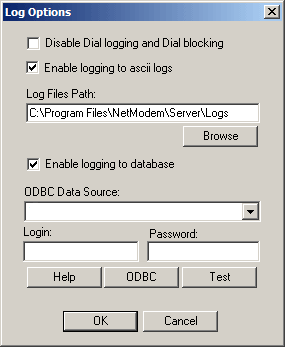
The log options Window can be accessed by opening the NetModem Server
Configuration tab, and clicking the Log
Options button.
The default settings are shown below, which have ASCII logging enabled,
and database logging disabled.
If you have something other then modems attached to the COM ports, then
it is recommended to check the first option, "Disable Dial Logging
and Dial blocking". This will cause AT commands sent to the COM
ports to be ignored.
9.2 Enabling Server Database Logging
By default database logging is disabled. It can be enabled by taking the following steps:
-
Open the NetModem Server manager's Configuration tab, and click the Log Options button.
-
From the Log Options window, enable the logging to database checkbox.
-
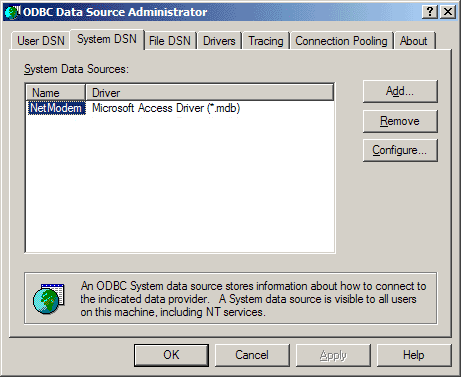
Click the ODBC button, to open the ODBC Data Source Administrator tool.
-
Click the System DSN tab. *** THIS IS A VERY IMPORTANT STEP! ***
(NetModem Server runs as a service, and therefore it requires System DSN.) -
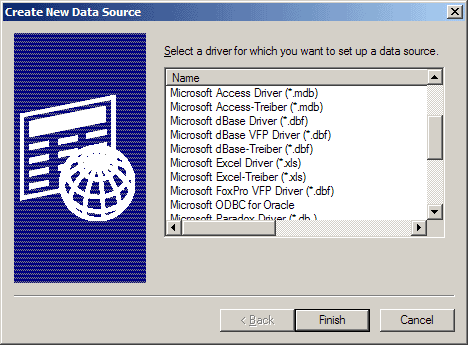
Click the Add button, which opens the Create New Data Source window.
-
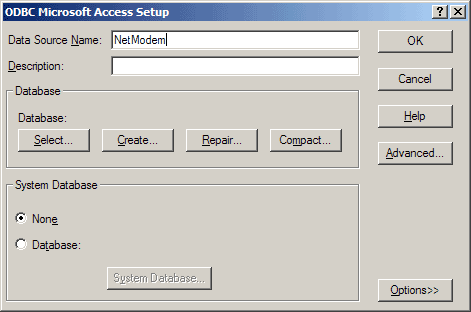
Select the proper ODBC driver for the desired database, and click Finish. In our example we will selected the Microsoft Access Driver. This will bring up an ODBC Driver Setup window for the driver you selected.
-
Type in any Data Source Name such as "NetModem". The description field is optional so it can be left blank.
-
Some ODBC Driver setups (such as MS Access) include a Create button. If your driver setup has a Create button, click this to bring up the New Database tool, allowing you to select the location and filename of your database. Windows must allow access to the location you select and any filename can be used, for example c:\Windows\System32\ with a name of NetModem. If your ODBC Driver Setup does not have a Create button just skip this step.
-
Some database types support Login name and Password enforcement. If these are to be used, these fields should be filled out in the ODBC Driver Setup. Some ODBC Driver Setups (such as MS Access) have the Login name and Password fields located under the Advanced button, while other drivers (such as Excel) do not support these.
-
When you are finished configuring, click OK to close the ODBC Driver Setup window and click OK to close the ODBC Data Source Administrator window.
-
From the NetModem Server Log Options window, select the ODBC Data Source name you created from the pulldown menu.
-
If you provided the ODBC Driver Setup with a Login name and Password, then you must also enter the same values in the Log Options window. Otherwise leave those fields blank.
-
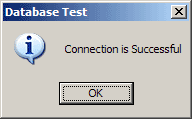
Finally, click the Test button to open the Database Test, which checks if NetModem Server can connect to the database. If the test is successful, click on OK to close Log Options and click the Save button. If the test fails, please review this overview for any mistakes.
10. User Authentication
In order to use authentication, the proper credential methods should be configured on both the NetModem Server and the NetModem Client PC's.
10.1 Server Authentication:
Each pool of COM ports on the NetModem Server can be configured to
limit access to specific authenticated Windows users, or to clients
that can provide a pool password.
User Authentication and other security options are configured separately per pool, from the NetModem Server Configure Tab.
Select one of the pools, and click the Properties button to bring up the Pool Properties window:
The credential options for each pool are:
By default None is selected, allowing any client to connect
to the COM ports in this pool without providing a login or password. |
 |
Require Authenticated User - This credential option limits
access to COM ports in this pool to a list of allowed users and/or groups.
When this option is selected, the "Edit Access List"
button appears. Clicking this button brings up the "Select Allowed
Users and Groups" dialog shown below:
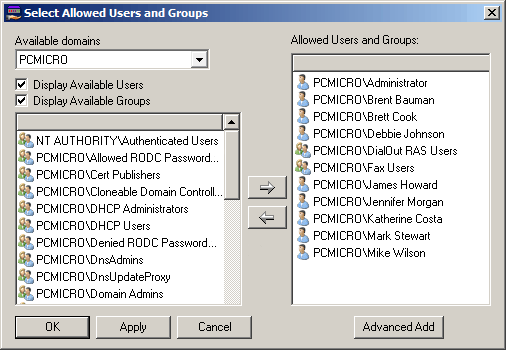
The Edit Access List allows defining users and/or groups that
are allowed to access ports in this pool.
To add a an item, select it from the list on the left, and click the
Right Arrow to move it to the list on the right.
To remove an item, select it group from the list on the right, and click
the Left Arrow to return it to the left list.
When a new pool is created requiring user authentication, a special group named "Authenticated Users" is added to the pool's allowed list by default. This is the recommended setting to give everyone with valid credentials access to the modems in this pool.
The Advanced Add button opens the Windows internal "Select Users and Groups" dialog, which allows typing in the desired user name(s) or group(s) to add.
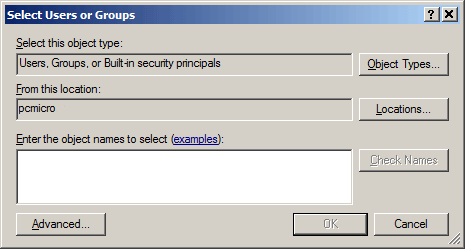
Clicking the "Advanced" button in the above dialog brings up the dialog below, which allows query searches for either object names or descriptions.
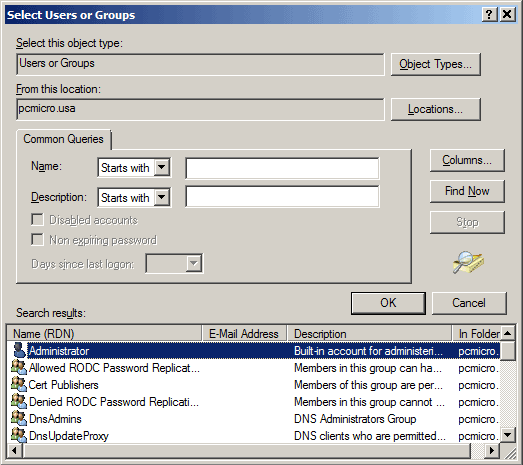
Clicking the "Find" button without typing in a search query will list all the objects.
Require Pool Password - This credential option limits access to COM ports in this pool to only clients that can provide the pool password. When you select this option the "Change Pool Password" button appears.
|
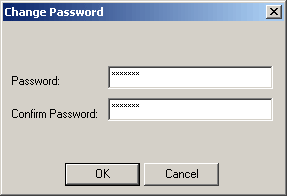
When a pool password is defined in NetModem Server, the same password must be defined in each NetModem client that needs to access this pool of COM ports or modems. The Password prompt requires you enter a password twice, to confirm that you typed it correctly. After clicking OK to accept the new password, please be sure to also click "Save" to begin using this password for the pool. |
 |
10.2 Client Authentication:
Once Authentication has been enabled on the server, it will also have
to be enabled on the clients.
Right click the NetModem Client Tray icon
and select Configure. (or go to Start > All Programs >
NetModem Client > Configure.
|
The NetModem Client Configuration Window allows you setting different
authentication settings for each Virtual COM port you have defined. The following authenticationl options are available |
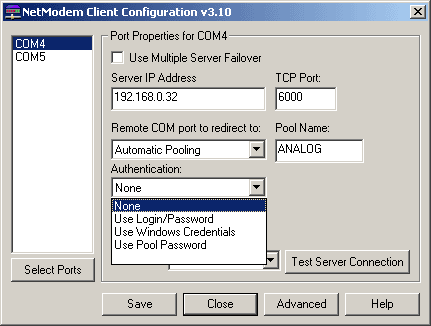 |
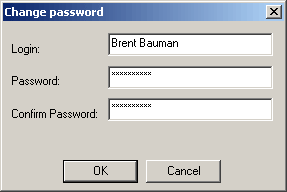
Use Login/Password - This will provide the server with a login and password each time a virtual COM port is opened. When you select this authentication option, a button will appear that says "Change Login/Password". which allows defining the Login name of the user, and their password.
|
The Login Name and password the client provides must match the Windows Credentials information found on either the domain controller used by the NetModem Server, or if a domain controller is not used then it must match a user that is defined on the NetModem Server computer. In an Active Directory environment, it is best to enter the Login name
in the slashed format: The Password prompt requires entering the password twice, to confirm that you typed it correctly. |
 |
"Use Windows Credentials Is only available in Windows 8 and earlier. This will use a "Network provider" to provide the server with the current user's Windows login information each time a virtual COM port is opened. NetModem client obtains this information from Windows during the login process. After the NetModem Client is installed, the user will need to logoff and then login again before this option will be functional.
Use Pool Password will provide the server with a password for
the selected pool each time a virtual COM port is opened. The server
allows a unique pool password to be defined for each pool of COM ports
or modems.
When you select this security option, a button will appear that says
"Change Pool Password".
Once you have enabled one of the security options in the NetModem Client Configuration, run the "Test Server Connection" to make sure that the security handshaking between the client and server are successful.
11. SSL/TLS Encryption
11.1 Encryption overview
Transport Layer Security (TLS) and its depreciated predecessor, Secure Socket Layer (SSL) are protocols designed to secure the transfer of data passed between the client and server by providing encryption, certificate authentication and data integrity. Enabling encryption in NetModem can effectively prevent intruders from eavesdropping or modifying the data streams passed over an insecure network or over the internet.
NetModem's encryption uses the current-generation OpenSSL toolkit version 1.1.1k. OpenSSL is the leading library for creating SSL/TLS applications, and is used on most SSL/TLS enabled servers.
OpenSSL supports TLS version 1.3, and the (depreciated) SSL version 3.
While TLS 1.3 is recommended, NetModem also supports the less secure TLS verson 1.2, as
well as the depreciated 1.0, and 1.1 versions. TLS/SSL makes use of one or more cipher suites.
A cipher suite is a combination of encryption and authentication algorithms. Most
ciphers supports multiple key lengths (known as Encryption Strengths)
NetModem supports the following ciphers suites: RC4, 3DES,
CAMELLIA, CHACHA20, and AES.
RC4 and 3DES are now depreciated and should no longer be used.
AES (Advanced Encryption Standard) is a
recommended cipher suite.
When AES is selected, NetModem will automaticlly use the hardware
based AES-NI instruction set when a compatible Intel/AMD CPU
is detected, which gives AES a performance boost of 4 to 10 times the
speed while reducing CPU overhead. AES-NI was first put into production
by Intel in 2010, and is supported on most later generation Intel and
AMD CPUs.
CHACHA20 is recomended for mobile devices and older PC's which do not have CPU's that support the hardware based AES-NI instructions, as CHACHA20 provides faster performance then AES without hardware accelleration.
CAMELLIA is another well designed cipher suite. While there are no real advantages over either AES or CHACHA20, it can be benifitial to have an alternative cipher suite in the event AES and/or CHACHA20 ever become compromised.
When Encryption is enabled, Each NetModem Client can request an SSL/TLS Certificate from the Server, which is used to validate the servers identity by confirming that the certificate was issued and signed by a Certificate Authority (known as a CA). A built-in list of CA's is included with NetModem Client, and a custom list of CA's can be used instead. NetModem Client also allows unsigned/self-signed certificates to be used.
A Sample unsigned certificate is included with NetModem Server, named Sample.pem. This is useful in the testing phase, but it should never be used in a production environment since it uses a known password.
11.2 Enabling Encryption
For encryption to be used, both NetModem Server and NetModem Client
must both be configured to enable encryption and to be able to negotiate
a common protocol, cipher suite, and cipher strength.
On NetModem Server:
- Click the "SSL Encryption" tab on the NetModem Server
Graphic User Interface.
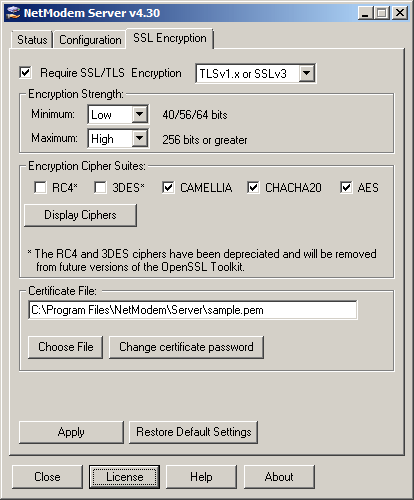
- Enable the Require SSL/TLS Encryption checkbox.
- Optionally select to use the desired SSL\TLS protocols from the
Encryption pull-down menu.
The options are:
TLS version 1.x or SSL version 3
TLS version 1.3 or 1.2
TLS version 1.3 only
TLS version 1.x (any)
SSL version 3 only
- Optionally select the Minimum/Maximum Encryption Strengths and Encryption
Ciphers suites that NetModem Server will allow.
- Select at least one cipher suite: RC4, 3DES, Camellia,
ChaCha20 or AES. Several or all suites can be selected,
and the server and client will negotiate the best mutual cipher to
use each time a client connects.
Note: RC4 and 3DES have been depreciated and are no longer recommended.
If TLS 1.3 or 1.2 is negotiated, then AES and ChaCha20 will be the only available cipher suites. The other cipher suites only support TLS 1.1, TLS 1.0, and SSL.
- If you are supplying your own certificate file, click the Choose
File button to select your Certificate .PEM file and then click
the Change Certificate Password to enter the password that
was used to create the certificate. The password for the sample.pem
certificate is "password". Note: The sample.pem certificate
provided with NetModem Server should only be used for testing. Any
publicly distributed certificate can not be considered secure.
- Click the Apply button to save the changes.
Note: The Certificate password is stored in the Windows Registry in
encrypted form.
On NetModem Client:
- Open the NetModem Client Configuration window, and on the
Encryption pull-down menu select one of the following encryption
protocols::
TLS version 1.x or SSL version 3
TLS version 1.3 or 1.2
TLS version 1.3 only
TLS version 1.x (any)
SSL version 3 only
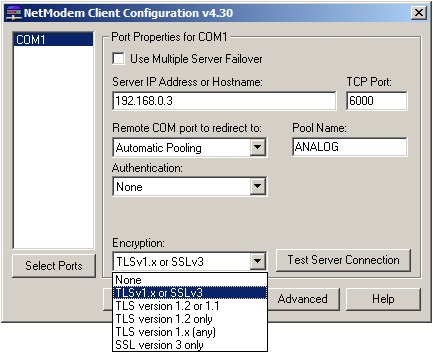
It is recommended to select the "TSLv1 or SSLv3" option, as this allows the Server to choose which will be used.
- Click the Advanced button, and from the Advanced window click
on the SSL Encryption tab.
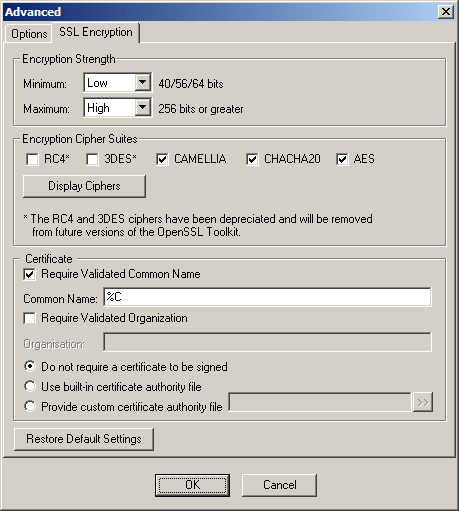
- Select the Minimum / Maximum Encryption Strengths
and the Encryption Cipher Suites which NetModem Client will
offer to negotiate with the Server. You will need to have at least
one Cipher suite selected which NetModem Server has also been configured
to allow.
- To assure that the Certificate supplied by NetModem Server has the
correct credentials, select the Require Validated Common Name
checkbox. By default there will be a %C in the Common Name
Field, which is a meta-tag used in place of the Servers Hostname or
IP Address, as defined in each COM port configuration screen. This
should always be used when there is more then one Server the client
will connect to.
Optionally, by selecting the Require Validated Organization checkbox, you can specify the name of the organization the Certificate was issued to, to verify that the client is connecting to the authorized server.
When either of these checkboxes are selected, the client will demand that the field(s) defined for them are an exact match for the same fields defined in the Servers certificate. You may leave these fields blank to be filled in automatically when you test the server connection in step 7 below.
- If NetModem Server is using the Sample.Pem certificate, or
if NetModem Server is using some other unsigned certificate then you
should select the Do not require a certificate to be signed
option.
If you are using a certificate signed by a known CA (Certificate Authority) then select the
Use built-in Certificate authority file option.
If NetModem Server is using a certificate signed by a CA not listed in the included CA.PEM textfile, then either select Do not require a certificate to be signed or Provide a custom certificate authority file. Review the CA.pem file to for information on creating a custom CA file.
- Click the OK button to close the Advanced window.
- In the NetModem Client Configuration window, click the Test Server
Connection button to verify that the Encryption options you specified
are compatible with the settings defined on the NetModem Server.
- If any encryption issues are found by the test, it will ask you
if you wish to fix the problems. Answering yes will change the encryption
options on the client to match what the server requires.
- Once the test is successful, be sure to click the "Use Settings" button at the bottom of the test window.
You can see which Encryption Cipher is being used by each active COM
port in the NetModem Client Monitor Status Window.
12. Blocking Dialin and Dialout
Each modem pool defined on the NetModem Server can be set to block
incoming calls and/or limit outgoing calls to a defined list of phone
numbers.
|
The Pool Properties for any defined modem pool can be selected from the NetModem Server configuration screen, by selecting the pool and clicking the Properties button.
The Block Dialin and Block DialOut options are disabled by default. When the "Block Dialout" option is enabled, it causes a button labeled "Allowed Numbers to Dialout" button to appear. |
|
How the "Block Dialin from Clients" feature works:
When enabled, this function prevents the clients from sending certain
AT command to the modems in the selected pool, as these commands are
used to allow a modem to accept an incoming call. In particular, the
following two AT command are blocked:
ATA - Answer an incoming call
Client applications send an ATA command to a modem to tell it to manually answer an incoming RING.
ATS0=x - Set Auto Answer mode on (where x = a numeric value from 1 to 9)
Client applications can send an ATS0=1 command to a modem to tell it to automatically answer an incoming call on the first ring. Any non-zero value after the equal sign enables it to automatically answer an incoming call on that ring number. Setting S0=0 disables the auto answer mode, and this command is not blocked.
Note that AT commands can contain other modem commands between the
AT and the actual command. For example: ATM0E0A
This is actually several modem commands: M0 turns the modem speaker
off, E0 turns echo mode off, and A answers an incoming
call.
How the "Block Dialout from Clients" feature works:
When enabled, this function limits the phone numbers that the clients
can tell the modem to dial, to a predefined list of phone numbers including
wildcards. Clicking the "Allowed numbers to Dialout"
button brings up notepad with the current pools allowed-list loaded.
Each entry on the list should be on its own line.
The format of the allowed numbers list file is as follows:
- Each phone number must be on a separate line.
- A phone number may only contain numeric values, and/or a Wildcard character *.
- Any hyphens or spaces must be removed.
- A phone number must include any prefix numbers dialed, such as 1 or an area code.
- A Wildcard * character can be used to represent any series of numbers.
The default list contains only one entry, a line with only a Wildcard character. This allows any phone number to be dialed. Lets imagine this is replaced with the following list:
8005551212
9508888
713*
The above list would allow the modems in this pool to dial either of the first two numbers, or any number beginning with "713".
13. Virtual Phone Books
Virtual Phone books allows the administrator to assign pseudo phone
numbers to clients, which are translated to the actual phone number
when dialing out. This allows phone numbers for specific services to
be changed without needing to globally reconfigure every dialout user's
terminal with the new phone number(s).
Once a Virtual Phone book has been assigned to a Pool, the administrator
can view and edit it directly, or allow a third party database tool
or script to maintain it.
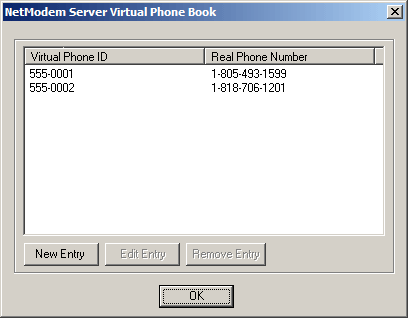
Viewing or Editing a Virtual Phone Book:
From the NetModem Server Configuration tab, select a Modem Pool and
click the Phone Book button.
|
Each Virtual Phone book is stored in either a flat text file, or an ODBC database. |
 |
Configuring Virtual Phone Books:
|
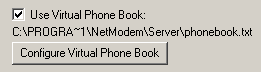
From the NetModem Server Configuration tab, select a Modem Pool
and click the Properties Button. |
 |
|
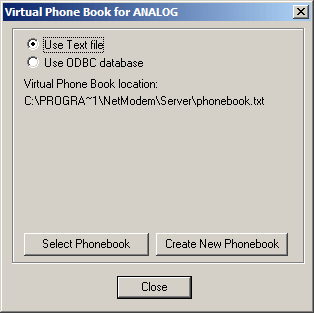
Choose to store the Virtual Phone Book in either a Text file, or an ODBC Database. By default a Text file named phonebook.txt is selected,
located in the NetModem Server data directory, which is usually
locaed in: ID1,Real_Phone_Number1 |
 |
|
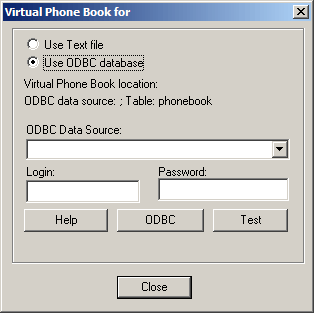
When choosing to use an ODBC database, the following fields
appear: Help: Opens a tutorial on creating an ODBC database using
the ODBC Database Administrator tool. |
 |
If NetModem Server is configured to log to an ODBC Database, the same
Data Source can be used for both logging and a virtual phone book, or
separate Data Sources can be used for each.
To create a new ODBC Data source, click the ODBC button to open
the ODBC Database Administrator tool.
Step by step instructions on using the ODBCD database Administrator
tool can be found in the Enable
Server Database Logging chapter.
14. Limiting Usage Hours
Each pool can have separate Usage Hours defined. Usage hours are the
hours of the day that COM ports in this pool are allowed to be accessed.
View or change the usage hours from the NetModem Server Configuration
tab, by selecting a Modem Pool and clicking on the Properties
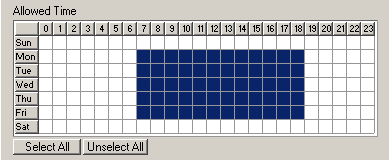
button, to bring up the Pool Properties window. The bottom of
the window has a graph representing each hour of the week with a block
that can be selected (colored) or unselected (white).
|
This graph shows that clients are allowed to access the COM ports in this pool Monday through Friday from 7:00AM until 6:00 PM. |
 |
To change the allowed access hours, click the mouse on an hour block,
or select a block by holding down the mouse and dragging. Days and hours
can also be toggled on/off by clicking on the desired Day or Hour button.
Click the OK button when you are done to close the Pool Properties
window, and click the Save button in the main window to save
and activate your changes.
15. Using Multiple Servers for Failover
If multiple NetModem Servers are installed, clients can be configured to maintain a list of servers to attempt to connect to each time a Virtual COM port is opened. If the first server on the list is either full or unreachable for any reason, the client tries the next Server on the list. Note: Each NetModem Server requires a separate license.
|
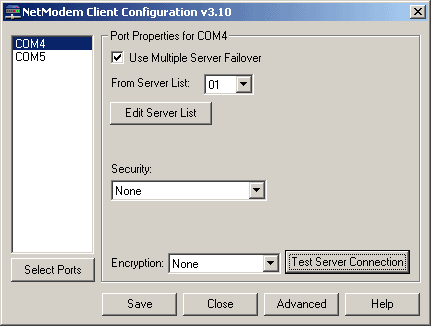
The Client Configuration Screen looks different when Use Multiple Server failover enabled. The usual input fields for IP Address, Port, and Pool are replaced with the Server List options. These allow you to choose from several different lists of servers, and will allow you to edit any one of those lists. Up to 20 Server Lists can be defined, and each server list allows
up to 5 Servers to be specified. |
 |
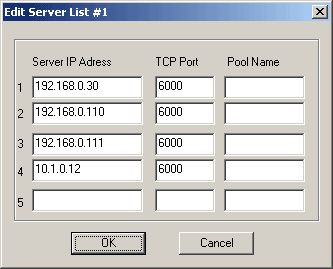
The Edit Server List allows up to 5 servers can be defined per list. in the order that the client will attempt to connect to them.
|
A Server list needs at least two servers defined. Each Server entry must have the IP Address (or hostname) of the Server, and the TCP Port. An IPv6 Address or hostname can be used only if the "Enable IPv6" option is enabed under the Advanced Configuration options. A Pool Name is optional, if no Pool Name is defined, the Servers default pool will be accessed. When an application opens a COM port configured to use multiple servers, NetModem Client attempts to connect to the first server on the list. If that server is either full or unreachable, it attempts to connect to the next server on the list. This continues until a server with an available modem is reached, or until all the servers have failed. |
 |
When using multiple servers, you can fine tune how long NetModem Client waits for each server to respond when the Client requests a COM port from a server. By default it waits up to 2 seconds for the server to respond, and if there is no response then it switches to the next server in the list. The settings can be found under the "Advanced" button in the NetModem Client Configuration window. The value is in milliseconds (1/1000th of a second), so the default value of 3000 = 3 seconds maximum. On a slow Network you might need to increase this value, and on a Network in which Several Failover Servers are defined, you might need to decrease the value in order to speed up the search.
16. Troubleshooting and Technical Notes
|
16.1..... If
the NetModem Client "Test Server Connection" Fails. |
16.1. If the NetModem Client "Test Server Connection" Fails
First check that the client COM port has the correct IP address of
the NetModem Server defined, and that the TCP port being used on that
COM port matches the TCP port being used on the NetModem Server.
If that does not solve it:
Find out if NetModem Server is accepting TCP connections locally, as
it may be a network issue or firewall issue which is preventing remote
computers from connecting.
One way of verifying that NetModem Server is accepting TCP connections is to use the Windows telnet client (telnet.exe) locally on the NetModem Server PC. telnet.exe is enabled by default in Windows XP and earlier, but in later versions of Windows it will need to be enabled by going to the Control Panel's Programs and Features applet, and in the left column click Turn Windows features on or off, and enable the check-box next to "Telnet Client". Before proceeding, disable SSL/TLS encryption in NetModem Server to allow telnet access.
To run the Windows Telnet Client, open a Command Prompt (Click
the start button and search for CMD). From the Command Prompt
window type in the following command line and press [Enter] :
telnet localhost 6000
(If a TCP port other then 6000 was configured on the NetModem Server, use that value instead)
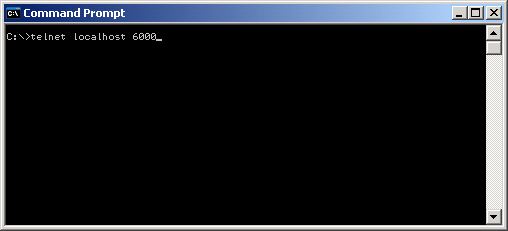
A black empty screen with a cursor in the upper left corner indicates
a successful connection. If Credentals are enabled, there should also
be a login prompt by the cursor.
A "Could not open connection to the host" response
indicates that NetModem Server is not accepting incoming connections
on that TCP port.
If the telnet connection is successful locally on the NetModem Server
PC, next try the telnet command from a NetModem Client PC
but change the word "localhost" to the IP address of the NetModem
Server. For example "Telnet 192.168.0.1 6000". If this works
from the server, but not from the client, then there is most likley
a firewall blocking inbound traffic to the TCP port on the server.
If the telnet connection works from the Client PC, then it should also
work successfully from the NetModem Client Configuration's "Test
Server Connection".
16.2. If the Client says "NetModem Server reports COM port not available"
This indicates that the COM port the client requested is not available on the NetModem Server. Check if the NetModem Client's virtual COM port is configured for Automatic Pooling as this tells the server to provide the next available COM port in a pool of Shared Ports defined on the NetModem Server.
If the client is set for Automatic Pooling then the next step is to find out why none of the "Assigned to pool" COM ports in the NetModem Server's first (default) pool are available. It could be due to other clients holding all the shared COM ports open. Look at the Active Connections listed in NetModem Server's Status screen on the Server PC. If some of the Shared Ports are in use by a client, then they will each be listed as an Active Connection, showing the IP address of the client PC that is using each port. If all the assigned ports in a pool are listed under the Active Connections list, then none will be available until they are closed by their client's application.
If all the COM ports in a pool are not listed as Active Connections, then there is some other reason that these COM ports are not available to the client. Either an application or service on the NetModem Server PC is currently using those COM ports, or there is a problem with the COM ports or their attached modems. If no other application on the NetModem Server PC appear to be using these COM ports, then try accessing the COM ports directly from the NetModem Server PC using a terminal program such as HyperTerminal or PuTTY. If a terminal program is unable to access the modems or COM ports directly, then the NetModem Server will not be able to access them either.
The pop-up Window that displays "NetModem Server reports COM port not available" to the client user can be disabled by going to the Advanced section of the NetModem Client configuration program and disabling the checkbox.
16.3. Solving Network Faxing Issues
Class 2 or Class 2.x fax modems are recommended for faxing
over a network, due to Class 1 being very timing sensitive. Many
low-end internal or USB "Software Modems" (also known
as Soft Modems) only support Class 1 fax. However, most
external serial modems, multi-modem cards, and several name-brand internal
modems support either Class 2 or Class 2.x faxing. It's a good
idea to check which fax class is supported with the modem manufacturer
before purchasing a modem to be used for faxing over a network.
The Faxing software you use also needs to be configured for Class 2
or Class 2.0. Keep in mind that Class 2 and Class 2.0 are not the same,
so it's important that the software is configured for a class that the
fax modem supports. Newer Fax modems may support Fax Class 2.1 which
is backwards compatible with Class 2.0 software, but neither of these
classes are compatible with Class 2 software.
Consult your faxing software documentation for information on setting
Class 2 or 2.0 in your faxing software.
There is additional information on this subject found on PC Micro's
NetModem Support Site.
16.4. Running the NetModem Server as a non-Service program
The NetModemServer.exe can run as a normal program (Rather then running as a Windows Service). Doing this will add an additional menu option to the system tray icon called Exit which allows the program to exit only if none of the COM ports are currently in use. If any COM ports are in use, this Exit option will be gray and unselectable.
16.5. Preventing accidental client configuration changes
If the Administrator is concerned about the possibility of a client
user misconfiguring the virtual com port settings, the configure.exe
file can be removed from the NetModem Client folder. This is usually
located in c:\program files\netmodem\client\
16.6. NetModem under Remote Desktop / Terminal Services or Citrix XenApp
Windows Remote Desktop Services (formerly known as Terminal Services) and Citrix XenApp are both multi-user environments which can be used with NetModem.
Remote Desktop Services is included with Windows Server, allowing a
user to connect to a Remote Desktop Session Host (RD Session Host) server
(formerly known as a terminal server) by using Remote Desktop Connection
(RDC) client software.
Remote Desktop is a light single-user version of a Remote Desktop Services.
included in Windows Professional, Business, and Ultimate editions.
Citrix XenApp is an advanced remote access infrastructure server for
enterprise applications.
When using either of these environments to allow "Thin-Clients"
to access the shared COM ports, the following procedure should be used:
- Install the NetModem Client on the RD Session host, or XenApp PC.
This can be the same PC where NetModem Server is installed, or not.
- Select one virtual COM port in the NetModem Client configuration,
and assign the IP address of the NetModem Server.
- Next Select as many additional Virtual COM ports as needed. (Usually
you will want to select one virtual COM port for each thin-client
user). Up to 256 Virtual COM port can be selected. All the additional
virtual COM ports will default to using the same Server IP address
as you assigned in step 2.
- When you close the client configuration window, you will be guided
to install a modem driver. When you are instructed to select the ports
to assign the modem driver to, select all the Virtual COM ports.
- Assign one of the Virtual COM ports to each thin-client user. This
will allow each user to access the next Shared COM port on the server
though their virtual COM port. This allows up to 256 thin-clients
to access the modem pool.
- Under the Advanced options in the NetModem client configuration,
disable the "show message if COM port not available"
checkbox. If no COM port is available on the NetModem Server, the
thin client will be informed by an error message in their application
software attempting to use a COM port.
- If NetModem Servers Pool Settings is configured to require User
Authentication, the NetModem Client Security setting may not be set
for "Use Windows Credentials". Instead the "Use
Login/Password" security setting must be used. This is because
Terminal Server and Citrix XenApp will not allow NetModem Client to
access the current user's Windows Credentials.
These environments can also be used to allow you to monitor and configure the NetModem Server from a remote computer.
To configure Windows 10, 8, 7, Vista, or XP (non-home editions) to become a Remote Desktop, use the following procedure:
- Right-click My Computer, click Properties, and then
click Remote tab or Remote Settings.
- Turn on Remote Desktop by selecting the check box Allow users
to remotely connect to this computer. Later versions of Windows
will allow either "less secure" or "more secure" options.
- Designate remote users by clicking the Select Users button.
To connect to a Remote Desktop (formerly Terminal Services) Server from
another computer, use the Microsoft Remote Desktop Connection
(RDC) tool. Additional information can be found here:
http://msdn.microsoft.com/en-us/library/windows/desktop/bb892075(v=vs.85).aspx
In Windows 7 and earlier, RDC is accessed by clicking on:
Start > All Programs > Accessories > Communications
> Remote Desktop Connection
Enter the IP address or hostname of the Remote Desktop Session host
and click on Connect.
RDC has an option to allow the local serial ports of the computer that
RDC is running on to be accessed by applications running on the Remote
Desktop session. This can be enabled by clicking on the Local Resources
tab, and under the Local Devices section enable the checkbox
for Serial ports.
We do not recommend doing this under normal conditions, as these
remapped RDC COM ports can cause great confusion for other clients connected
to the terminal server, since the COM ports will be visible (in serial
communication applications such as HyperTerminal) to any client that
is logged into that remote desktop server, but they can only be accessed
by the RDC connection which owns these local serial ports.
If NetModem Server is installed on a Remote Desktop / Terminal Services
Server or a Citrix XenApp Server, any remapped RDC COM ports will be
listed with an asterisk * to the left of the name, for example: COM1*.
The remapped RDC COM ports can only be shared by NetModem Server if
NetModemServer.exe is running as a non-service from that terminal session.
This is due to a limitation of RDC, in which the remapped ports are
only allowed to be accessed by an application running in the local terminal
session, and can not be accessed by a service. To make matters even
more confusing, it is possible for a remapped RDC COM port to have the
identical name as a COM port which physically exists on the terminal
server. If this occurs, NetModem will display both COM ports, and both
will be treated as the identical port since only one of them is actually
functional.
Remapping COM ports
Windows versions released after Windows XP (except for Server "Web"
Editions), include a command line utility called change.exe which
can map any COM port to a different port number. This can be useful
under a terminal Services session to map each clients unique COM port
to a common COM port number.
For example, a Remote Desktop Connection client could enter this command:
change port COM1=COM12
This allows a RDC client to access COM1 in their application software, which is redirected to COM12 by the RD Session Host. COM12 could be either a physical COM port, or a virtual COM port created by NetModem Client.
A second RDC client could enter this command:
change port COM1=COM13
Now both clients can access COM1 at the same time in their application
software, and they will really be using COM12 and COM13 respectively.
This allows all clients to use application software configured for a
particular COM port, and allows legacy applications that only supported
COM1-COM4 (or in some cases COM1-COM9) to be used by more then 4 or
9 Terminal Services clients at the same time. However, this will not
work with TAPI, so applications that need to communicate with a Modem
Driver name rather then a COM port value can not take advantage of this
feature.
The change port command can be used as part of each users login
script to map COM1 to a specific NetModem Client virtual COM port which
is reserved for that user. For example if COM99 is reserved for a particular
user, the following would be added to that users login script: change
port COM1=COM99
Mapped COM ports should only be named COM1, COM2, COM3,
or COM4. While change port will appear to accept higher
values then COM4, such ports will fail to open. This is because the
change port function was designed to be an aid for DOS application compatibility,
which only support COM1 to COM4 under Windows.
By running change port without any parameters, it will display
the available COM ports and the current COM port mappings.
To delete a mapping for a COM port, use change port /d COMx where COMx is a remapped port that you wish to remove.
A limitation of the change port command is that the new COM port exists only in memory, and is not written to the registry HKEY_LOCAL_MACHINE\HARDWARE\DEVICEMAP\SERIALCOMM which is where many application programs look to see which COM ports exist. One solution would be to create a dummy registry entry in this registry folder like this:
In which FAKE could be any unique name, and COM1 could be any unique COMx value. Making changes to the registry should only be done by an IT professional familiar with the precautions involved in registry editing such as backing up the registry first.
Name Type Data FAKE REG_SZ COM1
Limitations under Remote Desktop / Terminal Services and Citrix XenApp
- Only one outbound PPP (Point to Point Protocol) connection can be
made at a time from any Windows PC, even under a multi-user operating
system such as Terminal Services Server, Remote Desktop, and Citrix
XenApp. This is not a limitation of NetModem, but rather a limitation
within Windows.
For example, A Dial-Up Networking connection to an ISP uses the PPP protocol. This causes the Windows routing table to be changed so that all TCP packets that are sent outside of the local subnet are directed to this PPP connection. If another PPP connection is created, Windows again changes the routing table which causes the first PPP connection to fail. If you need to allow multiple users to be able to make simultaneous PPP connections, you will need to install the NetModem Client on each users PC instead.
- Citrix XenApp prevents more then one outbound VPN (Virtual Private
Networking) Connection to be made using a modem.
- If a VPN connection is used to connect to the network containing NetModem Client, then it is not possible to make a secondary PPP connection through the NetModem Client. This is due to a limitation in the VPN protocol.
Additional Information on Terminal Services and Remote Desktop can
be found at Microsoft's web site using the following link:
Microsoft TechNet - Remote Desktop:
https://technet.microsoft.com/en-us/windowsserver/ee236407
16.7. Using NetModem
with RAS (Remote Access Service)
RAS is a feature most commonly used in the Windows Server family but
it is also available in Windows 10, 8, 7, Vista, and XP (non-home editions).
RAS allows remote users to connect to your network using one of the
following methods:
- A modem connection, using Dial-Up Networking.
- A Virtual Private Network (VPN) connection, over the Internet or an intranet.
- A direct connection, using an LPT parallel printer port.
- An Infrared Port.
When modem connections are used for RAS, the selected modems are normally not able to be used by any other programs, even when they are idle and waiting for an incoming call. NetModem Server has a pool-properties option to share modems with RAS, allowing the same pool of modems to be used for both inbound (dialin) connections controlled by RAS (RRAS), and outbound (dialout) connections controlled by NetModem Server. When a client requests a modem which is currently controlled by RAS and this pool option is enabled,, NetModem Server asks RAS if the modem is currently in use, and if RAS says its available then NetModem Server borrows the modem from RAS. Once the client closes the modem, NetModem Server returns it to RAS.
Windows RAS is part of the "Routing and Remote Access Service" (RRAS).
In addition to supporting other features such as VPN and NAT, The Windows
Server RRAS service allows modems to be used by either RAS, Demand Dial
Routing, or both. NetModem can share modems with RAS, but it can not
share modems with Demand Dial Routing.
To disable Demand Dial Routing in RRAS on a Windows Server, use the
following procedure:
- Open the Routing and Remote Access MMC Window, and navigate
to:
Server Status > Name of your Server > Ports.
- Right click on Ports, and select Properties.
- From the Port Properties Window, select the modem device
name, and click the Configure button.
- From the Configure Device Window, make sure that only the
"Remote Access connections" checkbox is enabled,
and that the "Demand Dial routing connections" is
checkbox is disabled.
- Click OK, and the Port Properties window should show the modem device name is used by RAS
- Open the Routing and Remote Access MMC Window, and navigate
to:
Server Status > Name of your Server > Ports.
- Right click on Ports and select Properties.
- Highlight the modem name and select Configure.
- Un-check any enabled boxes and select Apply.
- Restart the RRAS service from the services management console.
Installing RAS on Windows 10, 8.x, 7, Vista, or XP:
Windows 10/8/7/Vista/XP (non-home editions) are limited to one inbound
RAS connection at a time per connection type (Dial-Up, VPN, Direct Parallel
or Infrared) and it has less security features then RAS under a Windows
Server. To install RAS on a non-server (and non-home) edition of Windows
use the following procedure:
- Log on to Windows with Administrator access, and open the control
panel (from the start button) and select Administrative Tools.
- Double-click the Services icon to open the Services control
panel, and Double-click on the Routing and Remote Access entry
to access the Routing and Remote Access properties.
- Select Automatic from the Startup type drop list,
and then click the Start button.
- Select Ok to close the Routing and Remote Access Properties
window, and also close the Services and Administrative tools
panels.
- From the control panel, double click the Network Connections
icon.
- Select Create A New Connection from the left pane under Network
Tasks. This invokes the New Connection Wizard, which can be used to
create both outgoing and incoming connections.
- Click Next on the Welcome page. This takes you to the Network
Connection Type page, which offers the following options:
[ ] Connect to the Internet
[ ] Connect to the Network at my workplace
[X] Setup an advanced connection -
Select the last option, Setup an advanced connection and click Next. This takes you to the Advanced Connection Options page, which offers the following options:
[X] Accept incoming connections
[ ] Connect directly to another computer
- Select Accept Incoming Connections and click the Next
button , so others can connect to this remote access server.
- The Devices For Incoming Connections page will show any modems
attached to this computer in the list of connection devices. If you
want to set up the computer to accept incoming dial-up connections,
check the checkbox(s) for the modem(s) you want to use. If you have
more than one modem and phone line connected, you will have the option
to enable multilink. If you have an infrared port or an LPT printer
port, you will also see additional choices called Direct Parallel
or Infrared, allowing another computer to connect over
a parallel cable or an infrared connection. The network interfaces
don’t appear here, so if you will be accepting VPN connections
only, just skip this page and click the Next button.
- The Incoming Virtual Private Network (VPN) Connection page
asks if you want to allow virtual private connections to this computer.
Your computer will need a name or IP address that’s known on
the Internet to accept VPN connections outside the LAN, unless you
use VPN pass-through. Even if your computer is directly connected
to the Internet, if you are using a firewall, it will have to be configured
to let VPN packets through. If you’re using Windows built-in
Internet connection firewall (ICF), Windows will automatically change
its configuration to allow VPN packets.
- Click Next to get to the User Permissions page. Select the
checkboxes of the local user accounts to which you want to grant remote
access. If the desired users are not shown, new users can be added
by clicking the Add button and typing in a user name and password.
Click Next.
- On the Networking Software page, select the networking components
that you want to have available for incoming connections, such as
Internet Protocol (TCP/IP) and File and Printer Sharing for Microsoft
Networks.
- Then click Next, and this will complete the Wizard and configure
your incoming connection(s). The new connection will appear in the
Network Connections folder as an icon called Incoming Connections.
The configuration can be modified later by double-clicking the Incoming
Connections icon or right-clicking and selecting Properties.
Deploying RAS on a Windows Server is considerably more involved due
to advanced security features, which are beyond the scope of this users
guide. Detailed information on Microsoft RAS policies and security features
under Windows Server can be found on the Microsoft TechNet Windows Server
Deployment guide, under the following sections:
Routing and Remote Access Service (RRAS)
https://technet.microsoft.com/en-us/library/dn614140(v=ws.11).aspx
If NetModem Server encounters an error when while reading or querying
a database, it will automatically issue a request to the ODBC driver
to repair the error. If this repair attempt fails, NetModem Server will
switch further logging to the text based log files (until NetModem Server
is restarted), and a database failure warning is recorded in the Windows
event log.
If an automatic repair fails, we suggest you perform a manual repair by following the steps below. A manual repair is managed by the ODBC database driver tool, which can display detailed information on errors found and suggested solutions.
- Stop the "NetModem Server" service, any applications which might also be accessing the ODBC database.
- Open the ODBC Data Source Administrator by clicking the Log
Options button in the NetModem Server Configure tab, and then
click the ODBC button.
- Click the System DSN tab.
- Select the NetModem data source, and click the Configure button.
- From the ODBC setup window, click the Repair button.
If the manual repair does not succeed, then the database source should
be replaced by using the Remove button from the ODBC Data
Source Administrator in the System DSN tab, and then recreating
the database as shown in the Server Logging
Options chapter.
16.9. NetModem Client advanced configuration options
To access the NetModem Client advanced configuration options, click
on the Advanced button from the NetModem Client Configuration
screen.
The following options are found under the Options tab:
- Delay closing COM port for [7500] ms.
When this option is enabled, it causes NetModem Client to remain connected to the server (and the physical modem) for the specified amount of time in milliseconds that begins when the virtual COM port is closed by the application. This ensures that the modem is not assigned to another client while a client application closes and reopens the virtual COM port, and ensures that an active connection is not lost if one application or process hands off a COM port to another one.
By default this option is Enabled, with a value of 7500 ms. (7.5 seconds).
- Show message if port not available
When this option is enabled, NetModem Client will display a pop-up message when an application attempts to open a NetModem Client Virtual COM port and NetModem Server is unable to provide access to the physical COM port on the server. The pop-up message displayed to the client user says "NetModem Server reports COM port not available". Further details can be found Here.
By default this option is Enabled.
- Update Routing Table if needed
When this option is enabled, NetModem Client will add a direct route to the server when a virtual COM port is opened, if the server is not on the same subnet as the NetModem Client PC and there is not already a direct route defined. Once the virtual COM port is closed, the added route will then be removed. The reason for adding a direct route, is that some PPP applications such as Windows Dial-Up Networking will change the computer's default route in the IP routing table when they have established a connection to the remote network. Once this change is made, the NetModem Client PC will no longer have a route to the server PC if the two PC's are not on the same subnet. Without a valid route, the client will lose its connection to NetModem Server.
Some third-party VPN software will not permit changes to the routing table. If the NetModem Client PC is connected to the NetModem Server PC through a VPN, this option may need to be disabled. In such a case, the VPN users would be unable to use NetModem to establish a dial-up networking connection.
By default this option is Enabled.
- Maximum time to wait for a Failover Server
When this option is enabled, and the NetModem Client virtual COM port is configured to use Multiple Server Failover this option will limit the time that NetModem Client waits for each server to respond before it gives up and attempts to connect to the next server in the failover list.
By default this option is Enabled, with a value of 2000 milliseconds (2 seconds).
- Synchronize with server during COM port open
When this option is enabled, each time an application requests to open a virtual COM port, the
COM port open request is not completed until the following events occur between the client and server:
1. The TCP connection to the server is established.
2. The SSL/TLS encryption negotiation is established (if encryption is used).
3. The COM Port Control protocol is negotiated.
4. The user authentication is successful (if security is used). - IPv6
While NetModem Server versions 4.10 and later always listen for both IPv4 and IPv6 connections, NetModem Client defaults to having IPv6 support disabled to allow compatibility under certain VPN's that only support IPv4 connections. When this checkbox is enabled, NetModem Client uses a connection method that supports both IPv4 and IPv6 networks.
Some applications may require that the COM port open function will synchronize with the server by waiting until the server provides the modem before returning a success status, or returning a fail status otherwise.
By default this option is Enabled, causing the virtual COM port to delay opening slightly.
16.10. NetModem Client virtual COM port driver
NetModem Client uses a highly optimized kernel-mode driver to create
its virtual COM ports.
The virtual COM port driver can be found in the device manager under
"Non-Plug and Play" drivers (you will need to enable
"View > Hidden devices" to see it).
The driver is controlled by a service in Windows. NetModem client virtual
COM ports can be reconfigured by third party applications, by writing
to the VCOMM registry folder located here: HKEY_LOCAL_MACHINE\SYSTEM\CurrentControlSet\Services\VCOMM
16.11. Support for DOS applications
NetModem is compatible with both Windows applications and DOS applications
running under 32-bit Windows.
Generally a DOS application which uses a COM port will do so by accessing
the serial port hardware directly. This hardware is called a UART,
which stands for Universal Asynchronous Receiver-Transmitter.
32-bit versions of Windows 10, 8, 7, Vista, XP, and Server 2000 through
2008 R2 include a subsystem to run DOS applications known as the NTVDM,
an acronym for NT Virtual DOS Machine. The
NTVDM monitors the standard UART I/O ports for activity by DOS applications
on COM1, COM2, COM3, and COM4. The NTVDM redirects any activity on these
ports to the Windows COM port of the same name. For this reason, DOS
applications can only be used with NetModem client on COM1-COM4. However,
these virtual COM ports can still be redirected to any value COM port
on the NetModem Server.
Some DOS applications allow you to configure the UART settings for the
COM ports. The NTVDM only works with the standard UART settings shown
below:
| Serial Port | Base Address | Interrupt |
| COM1 | 3F8 | IRQ4 |
| COM2 | 2F8 | IRQ3 |
| COM3 | 3E8 | IRQ4 |
| COM4 | 2E8 | IRQ3 |
While most DOS applications communicate with a COM port directly through the UART, there are a few DOS applications that can communicate by using the PC's BIOS Interrupt 14h or an enhanced version of the Interrupt 14h interface called a FOSSIL driver. If your DOS application says that it is compatible with Interrupt 14h or a FOSSIL, then you can install a third-party FOSSIL driver such as ADF or NetFoss, which can enhance performance of your DOS communication software. ADF is a free program which can be downloaded from http://www.digsys.se/Obsolete/ADF.aspx
An example command line to load ADF on COM4 would be:
ADF.exe COM4 2E8 3 57600 4096 1024
This TSR should be loaded in the same DOS window in which your DOS
application will be started from afterwards, which can be easily done
in a batch file. For more information on ADF, please refer to the ADF
documentation.
ADF is a DOS driver, so it will only work on COM1-COM4.
NetFoss is a free FOSSIL driver designed to use Windows COM ports, so
it will allow FOSSIL compatible DOS applications to work on any COM
port value. NetFoss can be downloaded from
http://pcmicro.com/netfoss NetFoss should be configured for
"COM Port Mode" to work with NetModem Client COM Ports.
17. Request Technical Support
Our technical staff has decades of experience in solving communication
related issues, and provides real guidance even on tough problems that
take trace log analysis or network packet analysis to figure out.
You can open a support ticket online at
http://pcmicro.com/netmodem/support.html or contact your
PC Micro account manager for assistance. You can also email questions
to support@pcmicro.com. Initial response time is usually under an
hour or two between 7:00AM - 7:00PM PST (Pacific Standard Time GMT-7
) Weekdays, and limited hours during weekends and US Holidays.
PC Micro maintains a list of Frequently Asked Questions at
http://pcmicro.com/netmodem/support.html
If you purchased or are evaluating NetModem through a local reseller
or a consultant, they may provide an additional level of technical support.
18. Update the License Key
NetModem allows a fully functional 30 day evaluation if no license
key is entered into the NetModem Server.
If you purchase a permanent license, you are provided with an electronic
license certificate (PDF file) which contains a license key that can
be entered into the NetModem Server to unlock the 30 day limitation.
The license key determines the number of COM ports that can be shared
on the server. Additional shared ports can be added to an existing license
as your needs increase.
To update your NetModem License Key, do the following:
- On the NetModem Server computer, open the NetModem Server window
by double clicking on the system tray icon.

- Select the License button. The current license information
is displayed, including how many days are left if the software is
running in evaluation mode.
- Select the Change button.
- Type in your License Key in the field titled License Key.
- Optionally type in the User Name and Company Name.
- Select OK to accept the new information.
The NetModem Clients never require a license key. The client software is included at no additional charge and can be installed on an unlimited number of PC's.
19. Uninstalling the NetModem Software
To Uninstall either the NetModem Client or Server software do the following:
- Close any active sessions that are using a NetModem COM port.
- In the Windows Control Panel, open the "Add or Remove Programs"
applet.
- Select either the NetModem Server or the NetModem Client in the list of installed programs.
- Click the Remove button to begin the Uninstall process.
- If uninstalling the Client software, remember to also remove any
modem drivers that were attached to its virtual COM ports.
A restart of Windows is not required after installing or uninstalling
the NetModem Server or Client software.
NetModem configuration settings and Server activity logs are preserved
in case of a later NetModem reinstall.
Copyright © 1997-2021 PC Micro Systems, Inc. Portions Copyright © 1997-2021 Microsoft Corporation. Portions Copyright © 1998-2021 The OpenSSL Project. This product includes software developed by the OpenSSL Project for use in the OpenSSL Toolkit (http://www.openssl.org). All Rights Reserved. Windows and Microsoft are Trademarks or Registered Trademarks of Microsoft Corporation. WinFax and pcAnywhere are Trademarks or Registered Trademarks of Symantec. Citrix, Metaframe and XenApp are Trademarks or Registered Trademarks of Citrix Systems, Inc. RC4 is a registered trademark of RSA Security, Inc. VMware is a Trademark or Registered Trademark of VMware, Inc. NetModem and PC Micro are Trademarks or Registered Trademarks of PC Micro Systems, Inc.